You open Google to check your listing and something is off. Your profile is gone from Maps, the dashboard shows a warning, and the phone has gone suspiciously quiet. If your Google Business Profile is suspended, you are not alone, and it is usually fixable. But the wrong move in the first 48 hours (like creating a brand-new listing or firing off three appeals) can turn a fixable problem into a permanent one.
This guide walks you through exactly what to do, in order: how to figure out what kind of suspension you have, how to find the real reason, how to clean up the profile, which documents to gather, how to submit the appeal, and what to do if Google says no. No guesswork, no shady tricks, just the process that actually gets profiles back.
Quick answer: If your Google Business Profile is suspended, do not create a new profile and do not appeal right away. First fix whatever breaks Google’s guidelines (name, address, categories, service area), then submit one appeal through Google’s official Appeals tool with documents that show your business name and address, such as a business license or utility bill. Reviews can take up to about 5 business days, and if the appeal is denied you can request one additional review with new evidence.
What a suspended Google Business Profile actually means
Google can suspend or disable a Business Profile when it believes the listing does not follow its guidelines. In plain English: an automated system or a reviewer decided something about your listing looks wrong, misleading, or risky. That does not mean you did something shady. Plenty of honest businesses get caught because of a home address set up the wrong way, an extra keyword in the business name, or a big batch of edits made on the same day.
The important thing is that you can’t fix what you can’t see, so start by identifying which situation you are in. Google’s own help page on fixing suspended or disabled profiles separates a few different cases, and each one has a slightly different path.
The main situations you might be in
- The profile itself is suspended or disabled. The listing stops showing normally to customers, and you will see a warning in your dashboard. This is the most common case and the one this guide focuses on.
- The owner’s Google Account is restricted. In this case Google suspends the profiles connected to that account, and you also can’t create or claim other profiles. You need to appeal the account restriction first, then the profile.
- Only a manager’s account is suspended. This affects that manager’s access, not the business listing itself. Remove the manager and the profile can keep running.
- Only some content is restricted. A rejected edit to your name, category, phone or website, or a photo that was removed, is a separate issue from a full suspension and has its own appeal route.
Step 1: Don’t panic, and don’t do these three things
Before you touch anything, stop yourself from the three most common panic moves. They feel productive. They are not.
- Don’t create a new profile for the same business. Google says this directly on its suspension help pages. A duplicate listing looks like an attempt to dodge the suspension, and it can make things worse for both profiles.
- Don’t submit multiple appeals. Google states that appeals can only be submitted once, and asks owners not to send several for the same issue before a decision comes back.
- Don’t make a storm of random edits. Changing your name, address, hours and categories all at once is a classic trigger for a suspension in the first place. Make only the specific fixes you need, which we cover in Step 3.
Take a breath, take screenshots of everything you see in the dashboard, and note the date. You will want that record later.
Step 2: Find the real reason in the Appeals tool
Google’s appeals help page explains that the Appeals tool shows you the date of the decision, the reason, a link to the policy you supposedly broke, whether the decision can be appealed, and the current status. That reason is gold. It tells you where to look instead of guessing.
The status labels you will see are Eligible for appeal, Submitted, Approved, Not Approved, and Can’t be appealed. If the tool says your decision is eligible, you have one good shot, so you want to use it well. If it says Can’t be appealed, read the linked policy carefully, because the fix may need to happen elsewhere (for example, on the Google Account itself).
The usual suspects behind a suspension
Google’s guidelines for representing your business are the rulebook. In our experience, most suspensions trace back to one of these:
- Keyword stuffing in the business name. “Smith Plumbing” is fine. “Smith Plumbing – Best Emergency Plumber Dallas 24/7 Cheap” is asking for trouble.
- Address problems. Using a P.O. box, a virtual office, or a coworking desk you don’t actually staff, or showing a home address when you serve customers at their location.
- Service-area setup mistakes. If you go to customers (plumbers, cleaners, mobile mechanics), you should normally hide your address and list the areas you serve instead.
- Wrong or misleading categories. Picking categories for services you don’t offer, just to show up for more searches.
- Duplicate listings for the same business at the same location.
- Inconsistent information between your profile, your website and other directories (different names, phone numbers or addresses).
- Too many big edits at once, especially to name and address.
Want more calls from Google? If your profile was suspended or keeps getting flagged, Ranktude can review the listing line by line, fix what breaks the guidelines, and prepare a clean appeal so you are back on the map faster.
Get a free visibility auditOr run the free Local SEO Checker →
Step 3: Clean up the profile before you appeal
Google’s appeal instructions ask you to make sure your profile follows all the guidelines before you submit. This is where most failed appeals go wrong: the owner appeals, but the listing still has the same problem that triggered the suspension. Fix first, appeal second.
Go through this checklist slowly:
- Business name: exactly what appears on your sign, your license and your paperwork. Remove city names, service keywords and slogans unless they are truly part of your legal or branded name.
- Address: a real, staffed location where you can meet customers during your stated hours. If you don’t serve customers there, hide the address and set a service area.
- Service area: real cities, ZIP codes or neighborhoods you actually serve, within a reasonable drive of your base.
- Categories: one accurate primary category that describes your core business, plus a few honest secondary ones.
- Phone and website: a local number you actually answer, and a website that shows the same name, address or service area, and phone.
- Hours: real hours, matching what is on your website and door.
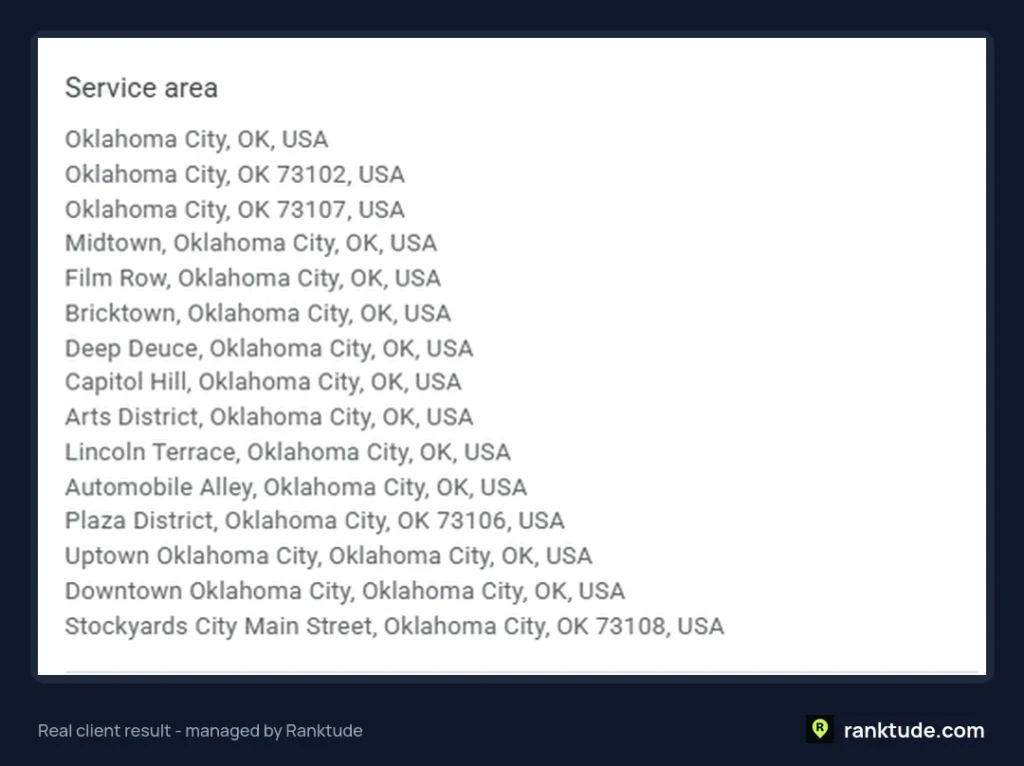
Accurate categories and a clean, believable service area are two of the details we set up first for every client. For a law firm client in Oklahoma City, we built the service area from real neighborhoods the firm actually serves, like Midtown, Bricktown and Deep Deuce, instead of a vague, oversized region.
Once the basics are right, make your website back them up. Adding LocalBusiness structured data with the same name, address and phone helps Google connect the dots; our free Local Business Schema Generator creates that code in a minute.
Step 4: Gather documents that prove you are real
Your appeal is only as strong as your evidence. Google lists examples of supporting documents it accepts, including official business registration, a business license, tax certificates, and utility bills such as electricity, phone, water or internet. The key rule: the business name and address on those documents should match what is on your profile.
Helpful things to gather:
- Business license or registration certificate showing your exact business name.
- A recent utility bill in the business name at the listed address.
- A tax registration certificate.
- Clear photos of your storefront with permanent signage, your street number, and the inside of the business (helpful if you have a physical location).
- For service-area businesses: photos of branded vehicles or equipment, and your license for the trade.
If your documents show a different name or address from your profile, fix that mismatch first. Sending documents that contradict your listing is one of the fastest ways to get a “Not Approved.”
Step 5: Submit one strong appeal
When the profile is clean and your documents are ready, submit the appeal through Google’s Appeals tool while signed in to the Google Account that owns the profile. The flow is short:
- Open the Appeals tool from Google’s help page and confirm you are signed in to the right account.
- Select the suspended profile, then select the decision you want to appeal.
- Upload your supporting evidence (you can attach more than one file).
- Write a short, factual explanation in the text box.
- Confirm all supporting evidence is attached, then submit.
What to write in the text box
Keep it short and calm. Google is not grading your essay, and an angry paragraph won’t speed anything up. A good structure is: who you are, where you operate, what you corrected, and what you attached. For example: “We are a licensed plumbing business serving customers at their homes in these five cities. We removed extra keywords from our business name, hid our home address and set our service area. Attached are our business license and a recent utility bill showing the same name and address.”
Step 6: Wait, and know what to do if Google says no
Google says appeal reviews can take up to 5 business days, and you will get the decision by email. Use the waiting time wisely: don’t edit the profile again, don’t open a second appeal, and don’t build a new listing.
If your appeal is approved, check that your listing shows correctly on Search and Maps, and review your rankings over the next few weeks. Our guide on how to rank in the Google Maps 3-Pack covers how to rebuild momentum after a setback.
If your appeal is not approved, Google offers an additional review through its support contact form, and only after a denial. You can add evidence that was not in your first appeal. Treat it like your final chance: look again at what could still be breaking the guidelines, fix it, and send stronger, matching documents.
Once you are back, keep it healthy
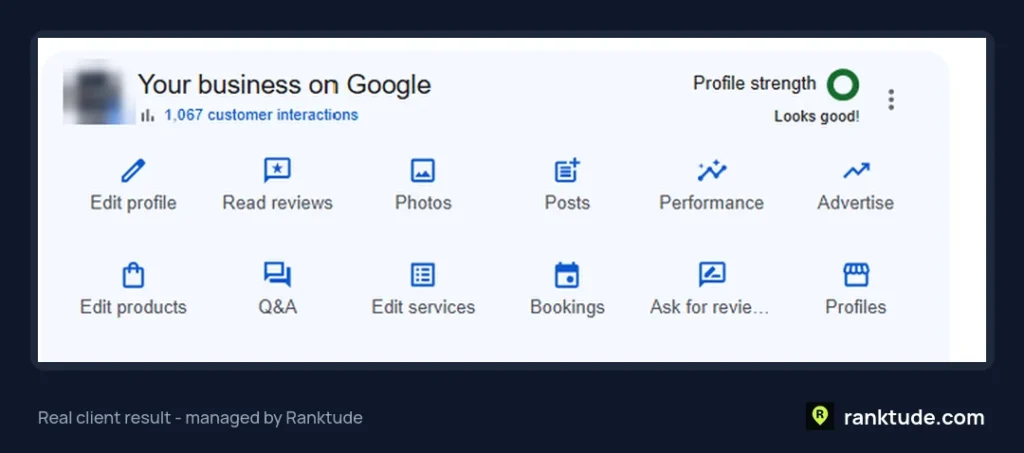
A recovered profile is not the finish line. A well-managed profile that follows the rules tends to stay out of trouble and keep producing leads. For a law firm client of ours, the Business Profile panel shows 1,067 customer interactions and a profile strength rating of “Looks good,” which is exactly where you want a clean listing to be.
Mistakes to avoid after a Google Business Profile suspension
- Creating a duplicate profile. It feels like a shortcut. It is more like a shortcut off a cliff.
- Appealing before fixing. If the cause is still there, the appeal has little reason to succeed.
- Sending mismatched documents. A license under a different name or address raises more doubt, not less.
- Buying fake reviews or using a virtual office to look bigger. These are some of the riskiest moves you can make on Google.
- Letting a random freelancer “fix” it with a new account. Ask exactly what they will change and why, and never hand over full ownership of the profile.
- Ignoring the rest of the web. Your website and directory listings should show the same name, address and phone as your profile.
Frequently asked questions
How long does it take to get a suspended Google Business Profile back?
Google says appeal reviews can take up to 5 business days, and the decision arrives by email. The total time depends on how fast you fix the underlying problem and gather matching documents before you submit.
Will I lose my reviews if my profile is suspended?
While a profile is suspended, customers can’t see it the normal way, so your reviews aren’t helping you. When a profile is reinstated, the listing generally returns as it was, which is one big reason to recover the original profile instead of starting a new one.
Can I just create a new Google Business Profile instead?
No. Google explicitly asks owners not to create a new Business Profile for the same business. A duplicate can be treated as a violation itself and can hurt your chances of getting the original back.
How many times can I appeal a suspension?
Google says appeals can only be submitted once. If that appeal is denied, you can request one additional review through Google’s support form and include new evidence.
Can an agency help with a suspended profile?
Yes. An experienced local SEO team can spot guideline problems you may miss, clean up the listing, and prepare matching evidence. Just make sure the appeal comes from the account that owns the profile, and that you keep ownership.
Get your suspended Google Business Profile back on the map
A suspended Google Business Profile is stressful, but it is usually a solvable paperwork-and-guidelines problem. Find the reason in the Appeals tool, fix the listing first, gather documents that match, submit one clear appeal, and be patient. If you’d rather not risk your one shot, our Google Business Profile management and local SEO teams handle this every week.
Request a free visibility audit and we’ll tell you what is likely behind the suspension and what to fix, or run the free Local SEO Checker to see 18 local signals for your business in about 30 seconds.
Want us to do this for you?
Get a free Google Maps heatmap, profile health check and AI visibility report. We usually reply in under 1 hour.